> ## Documentation Index
> Fetch the complete documentation index at: https://support.umsatzagent.com/llms.txt
> Use this file to discover all available pages before exploring further.
# Wie du WhatsApp in deinem Konto aktivierst
> Verbinde dein WhatsApp Business-Konto mit UmsatzAgent. Wähle die Methode, die zu deiner Situation passt.
## WhatsApp Business-Integrationsleitfaden
Verbinde dein WhatsApp Business-Konto mit UmsatzAgent. Wähle die Methode, die zu deiner Situation passt.
Wähle deine Methode
[1 **Bestehende WhatsApp Business App verbinden**Nutze deine bestehende App weiterhin parallel zur Plattform (Koexistenz)](#1-bestehende-whatsapp-business-app-verbinden-nutze-deine-bestehende-app-weiterhi) [2 **Neue WhatsApp Business-Telefonnummer verbinden**Neu starten mit einer ganz neuen Telefonnummer](#2-neue-whatsapp-business-telefonnummer-verbinden-neu-starten-mit-einer-ganz-neue) [3 **Von einem bestehenden BSP migrieren**Von einem anderen Business Solution Provider wechseln](#3-von-einem-bestehenden-bsp-migrieren-von-einem-anderen-business-solution-provid)
Methode 1: Bestehende WhatsApp Business App verbinden
```
Nicht unterstützte LänderDie Koexistenz-Funktion ist für Telefonnummern aus Nigeria oder Südafrika nicht verfügbar.
```
1
Registrierungsprozess starten
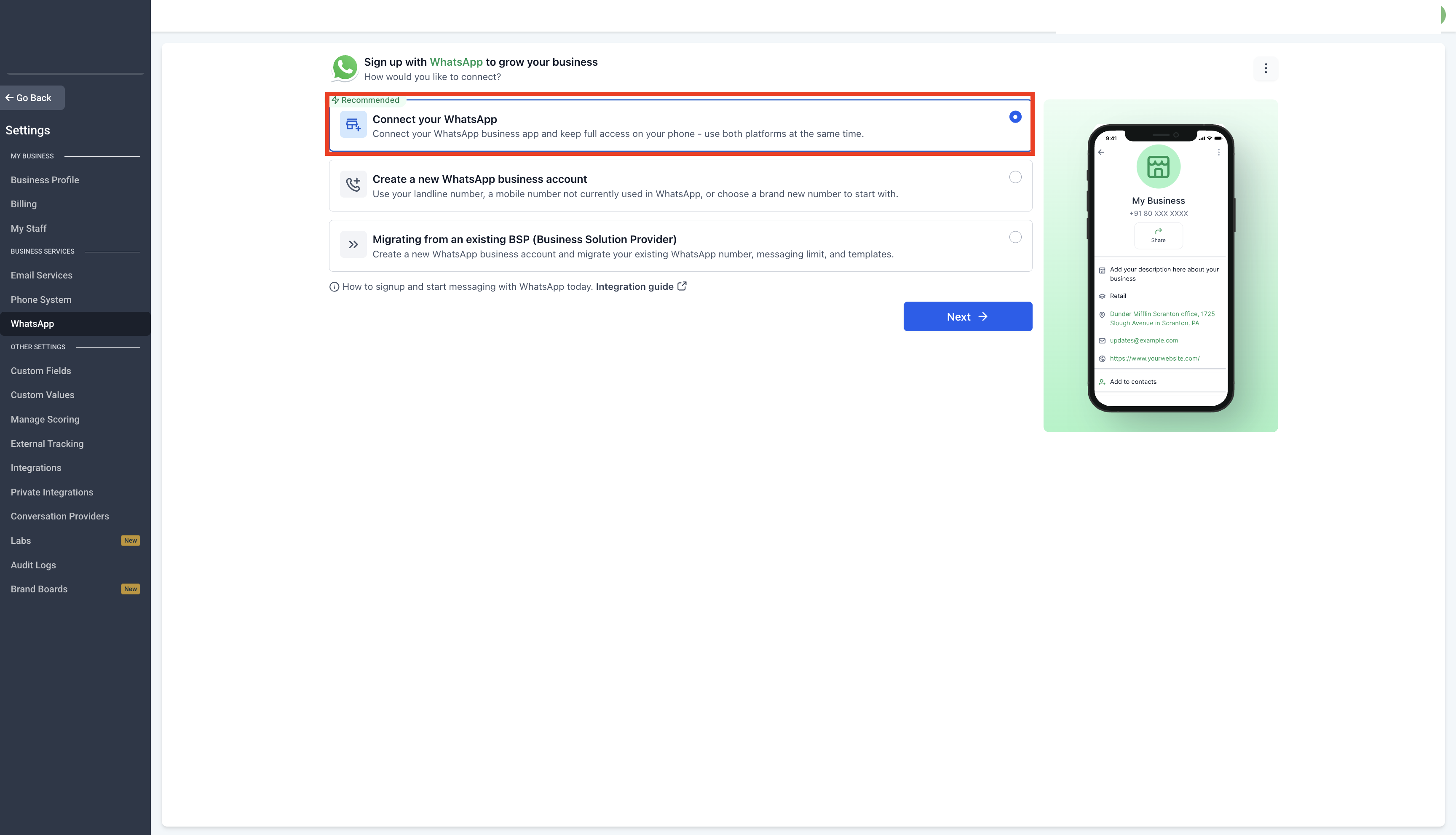
Navigiere zu **Einstellungen > WhatsApp** und wähle **Connect your WhatsApp**.
2
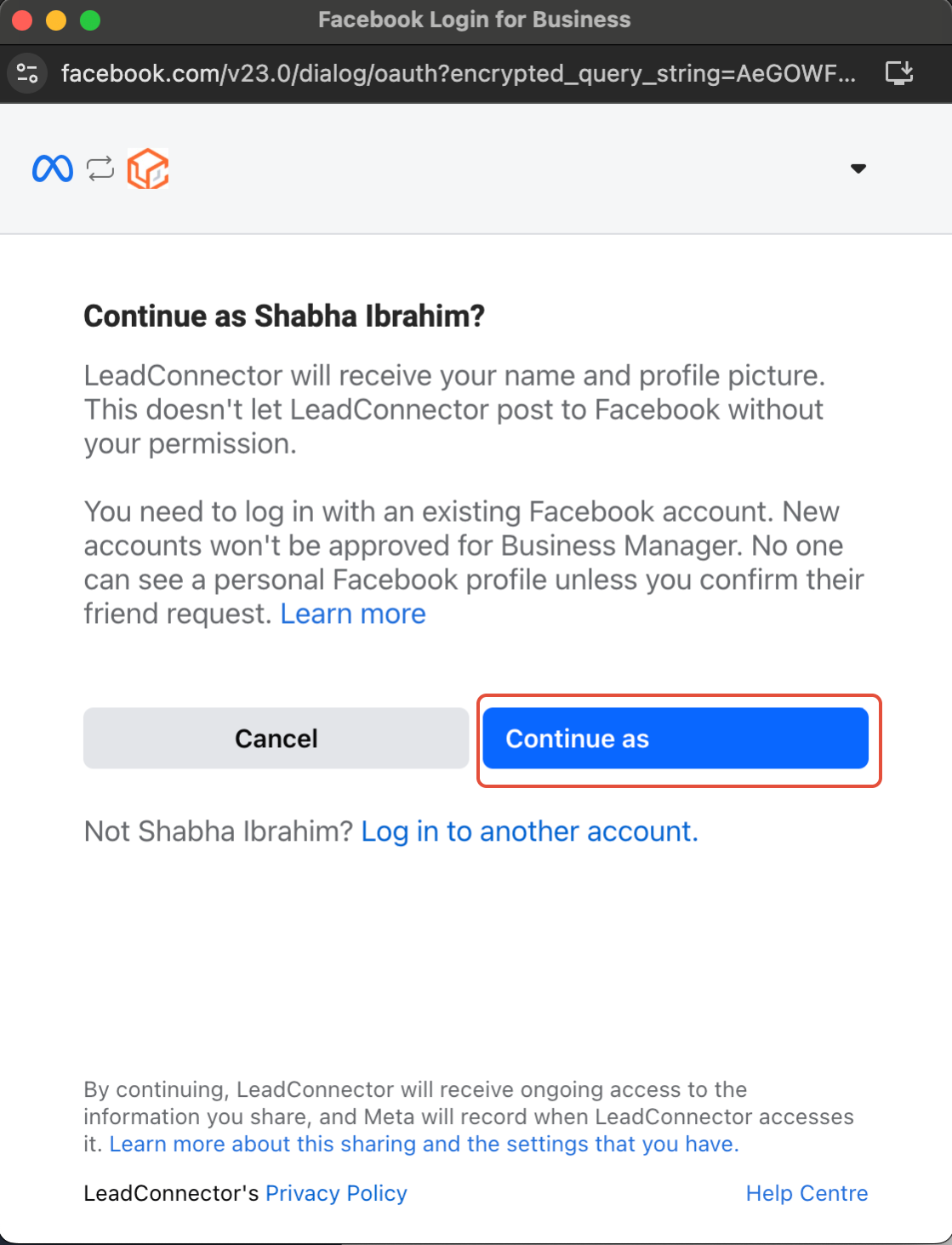
Mit der Registrierung fortfahren
Folge den Anweisungen auf dem Bildschirm, um den Registrierungsprozess zu starten.
3
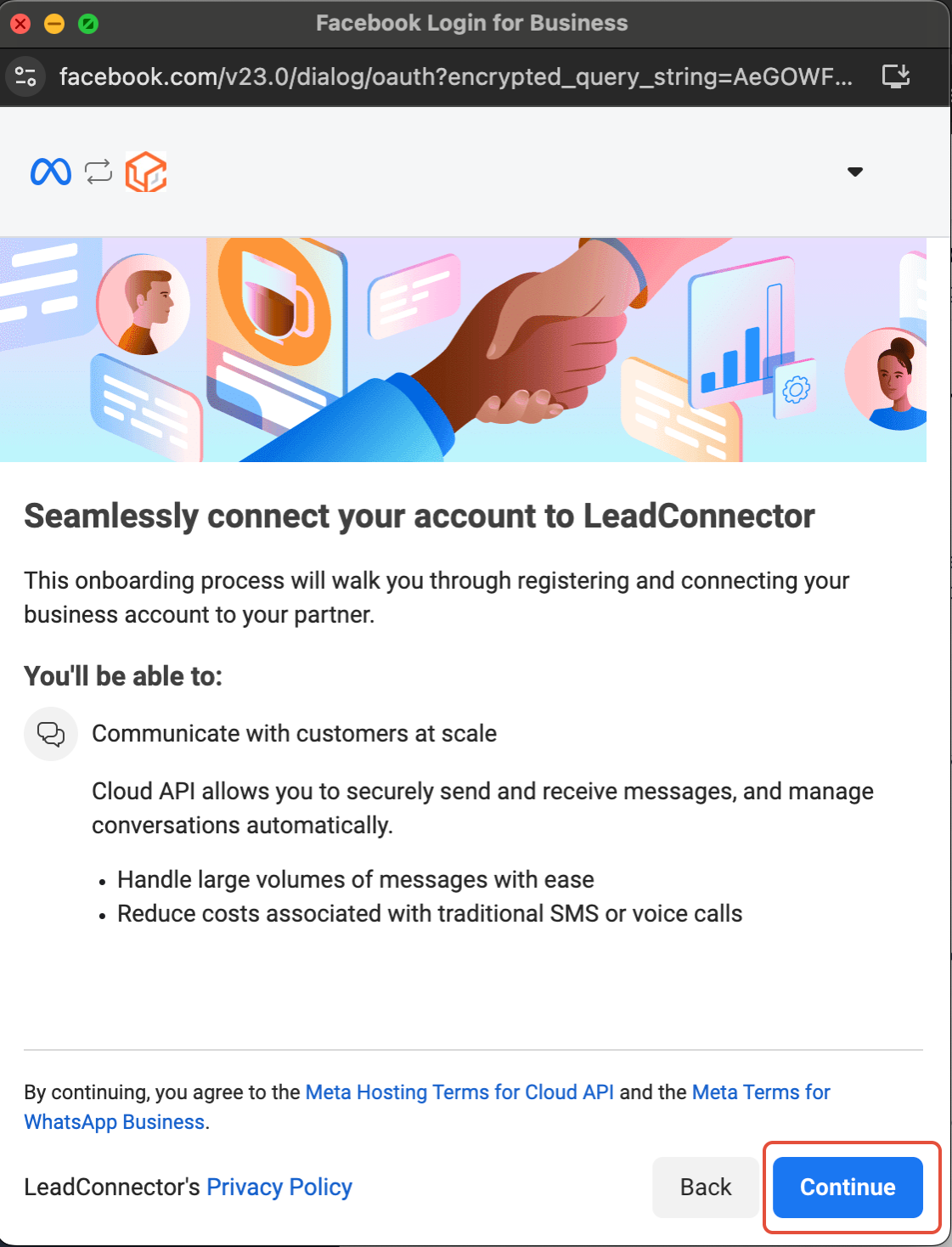
Mit UmsatzAgent verbinden
Klicke auf **Continue**, um mit der Integration fortzufahren.
4
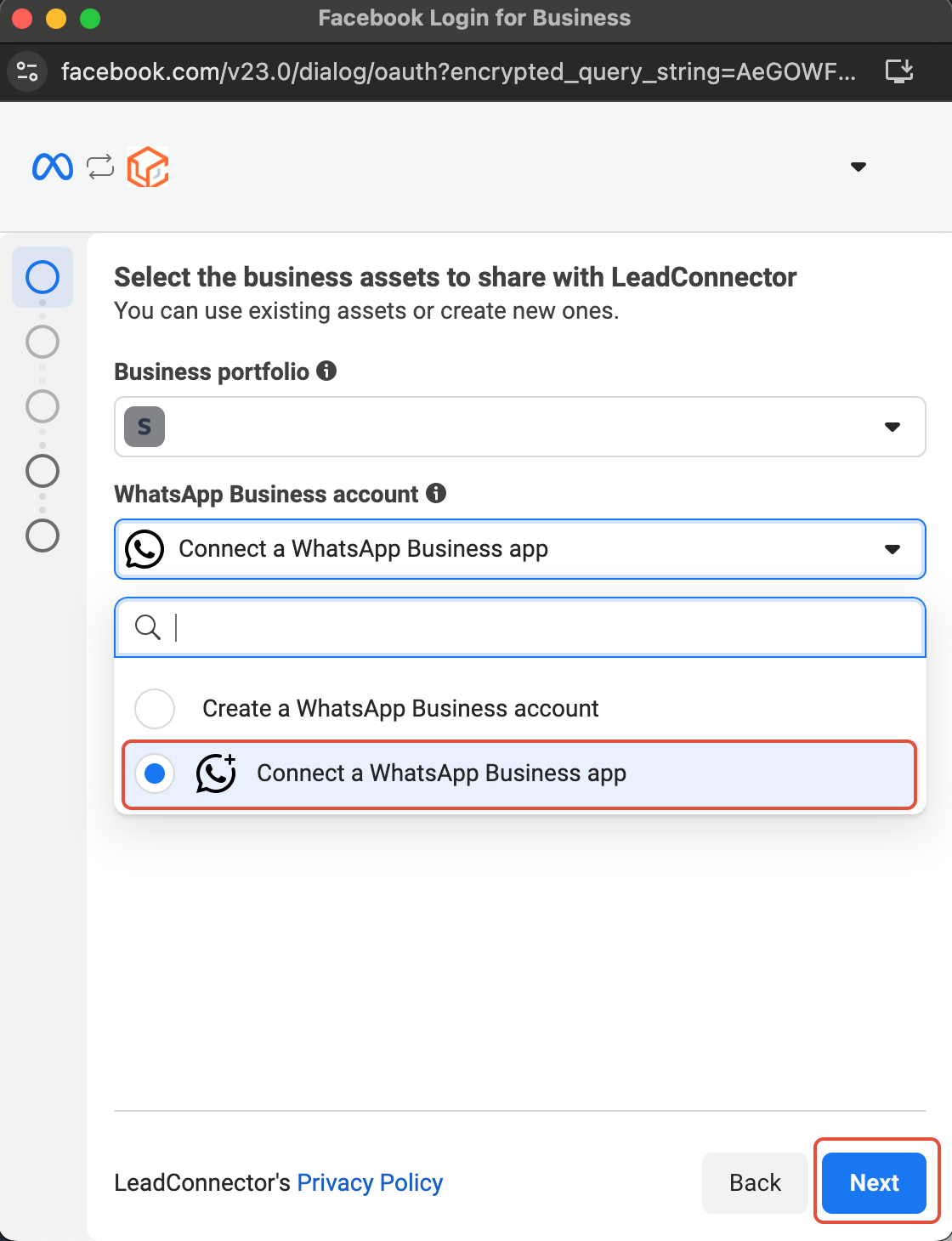
WhatsApp Business App auswählen
Klicke auf **Connect a WhatsApp Business App** und tippe dann auf **Next**.
5
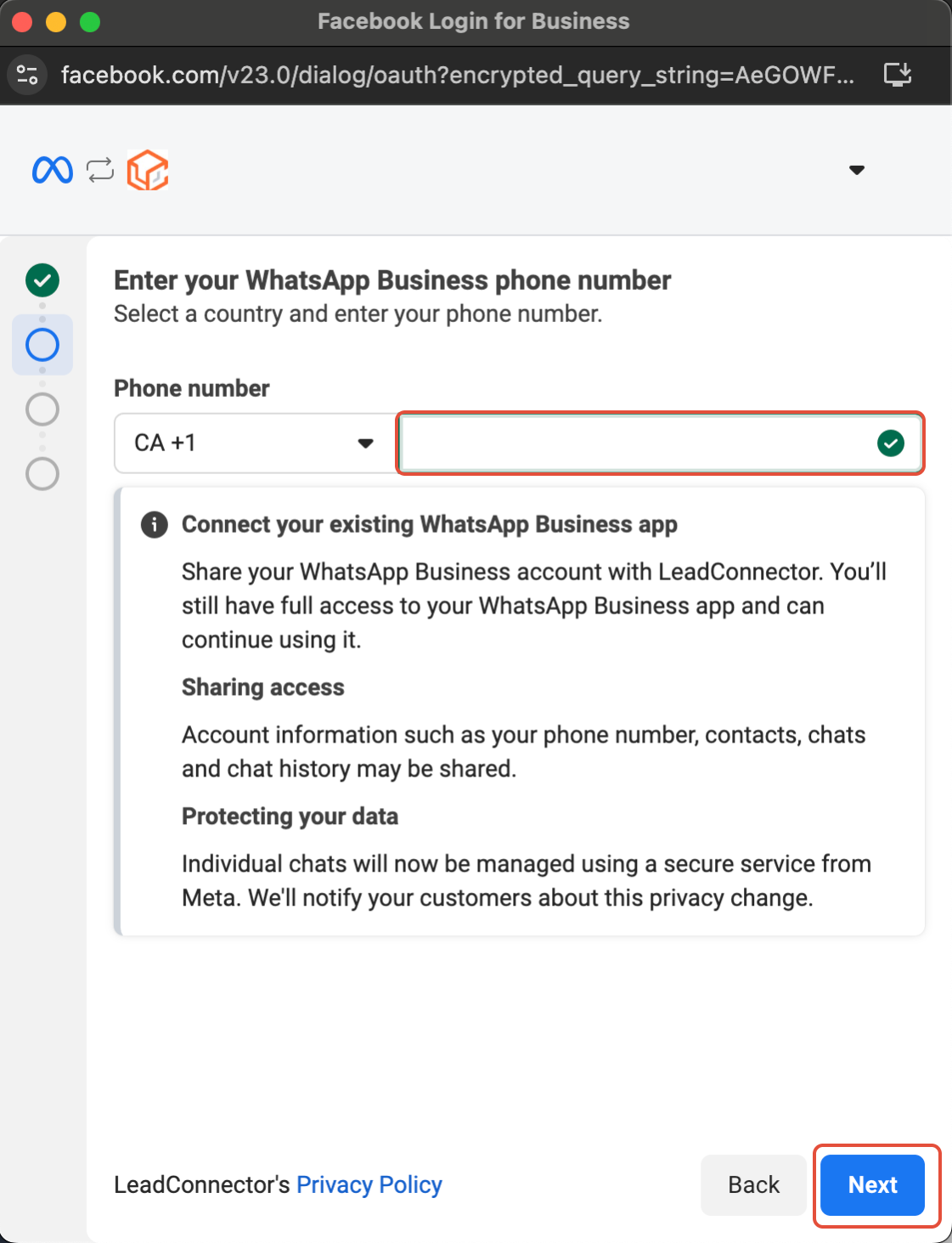
Telefonnummer eingeben
Füge deine WhatsApp Business-Telefonnummer hinzu und tippe auf **Next**.
6
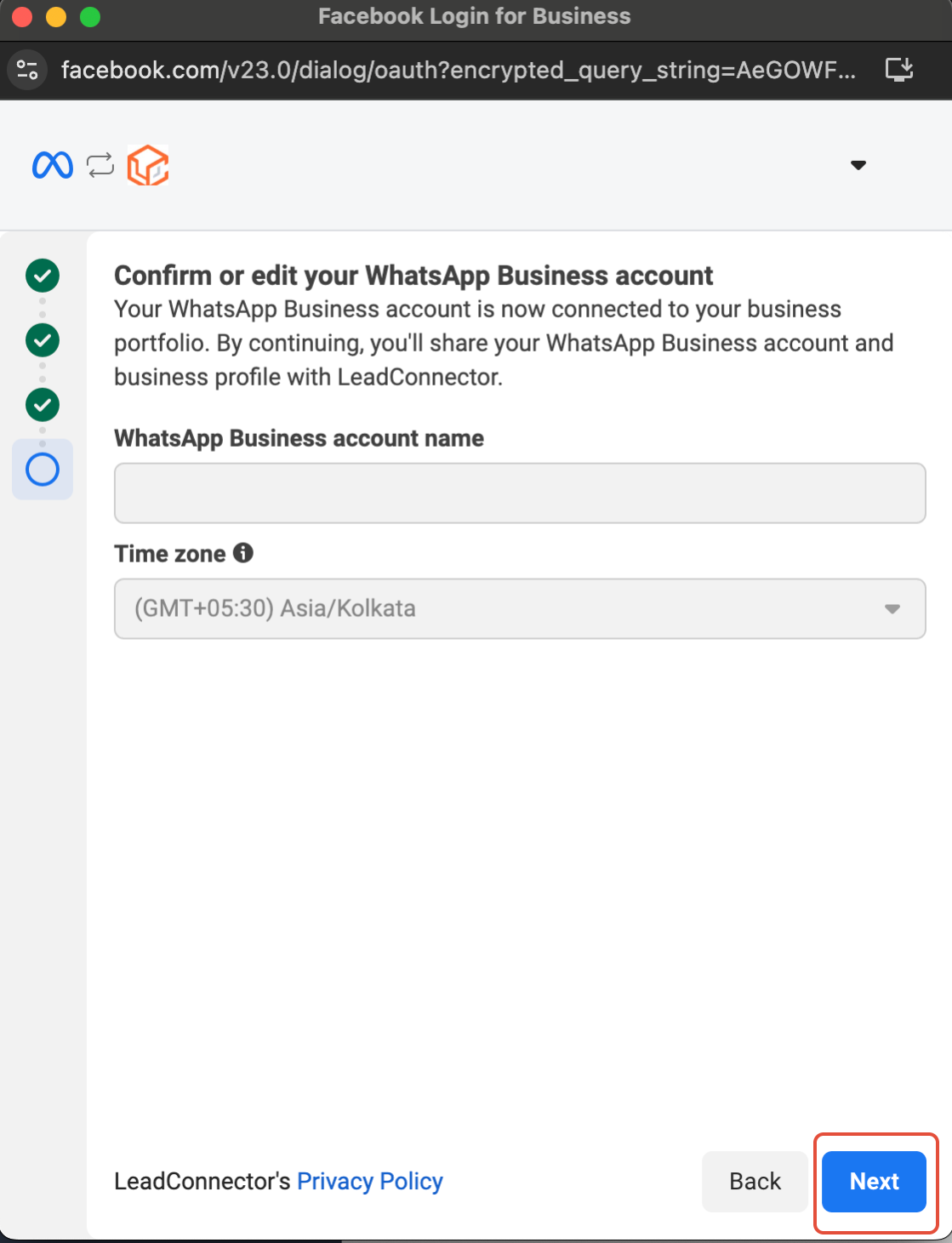
Kontodetails überprüfen
Überprüfe die Details deines WhatsApp Business-Kontos und nimm eventuelle Korrekturen vor, bevor du fortfährst.
7
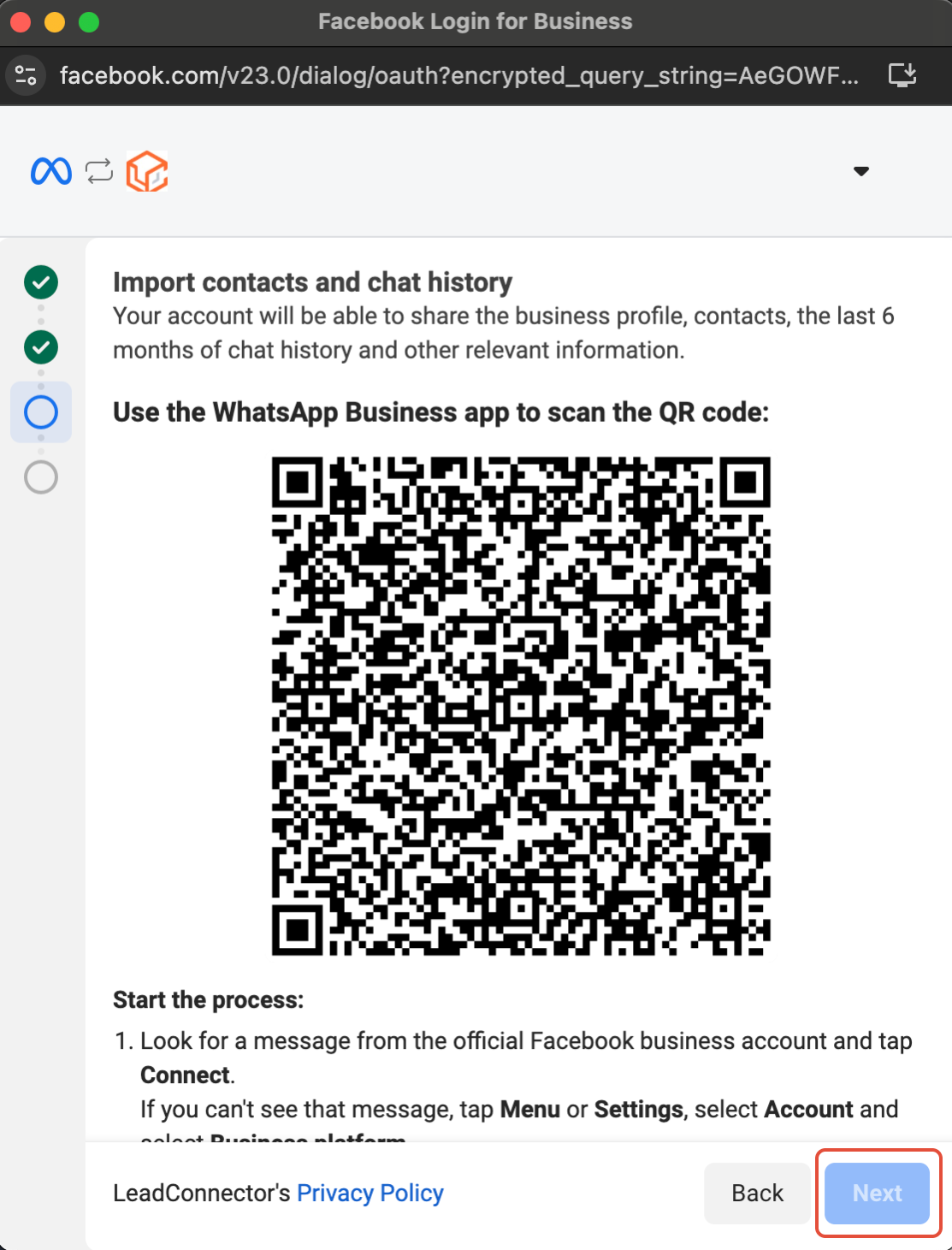
Kontakte & Chatverlauf importieren
Importiere Kontakte und bis zu sechs Monate Chatverlauf aus der WhatsApp Business App in UmsatzAgent.
* Aktualisiere deine WhatsApp Business App vor diesem Schritt auf die **neueste Version**.
* Achte auf eine Nachricht des offiziellen Facebook Business-Kontos und **scanne den QR-Code**, wenn du dazu aufgefordert wirst.
8
Mit der Business Platform verbinden
Scanne den QR-Code, um die Verbindung abzuschließen. Du kannst deine WhatsApp Business App weiterhin parallel zur Business Platform nutzen.

9
Chatverlauf & Kontakte teilen
Deine Kontakte und Konversationen werden sicher mit UmsatzAgent synchronisiert.

10
Einrichtung abgeschlossen
Deine WhatsApp Business App ist jetzt erfolgreich mit UmsatzAgent integriert.

11
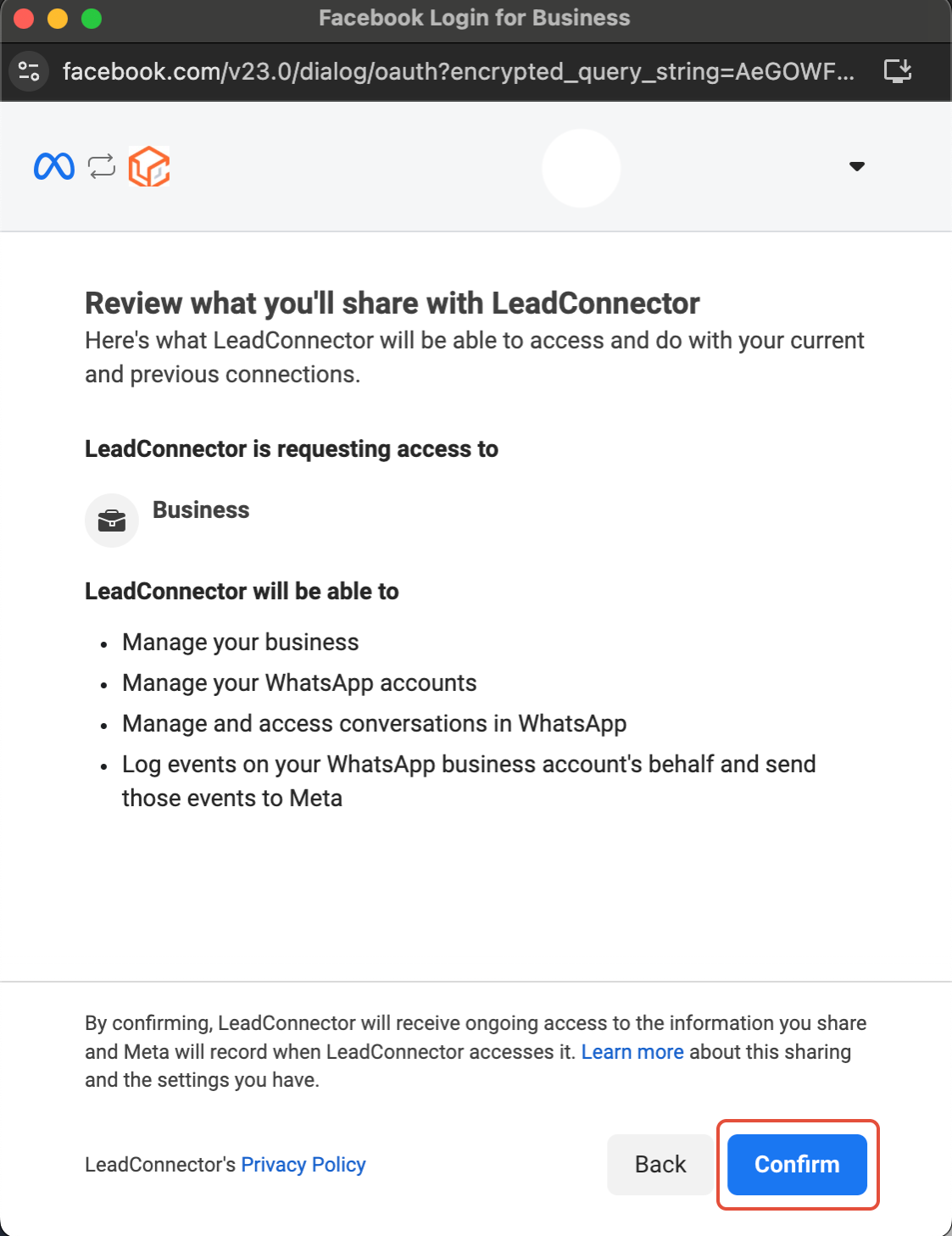
Überprüfen und bestätigen
Prüfe alle eingegebenen Details sorgfältig und klicke dann auf **Confirm**.
✓
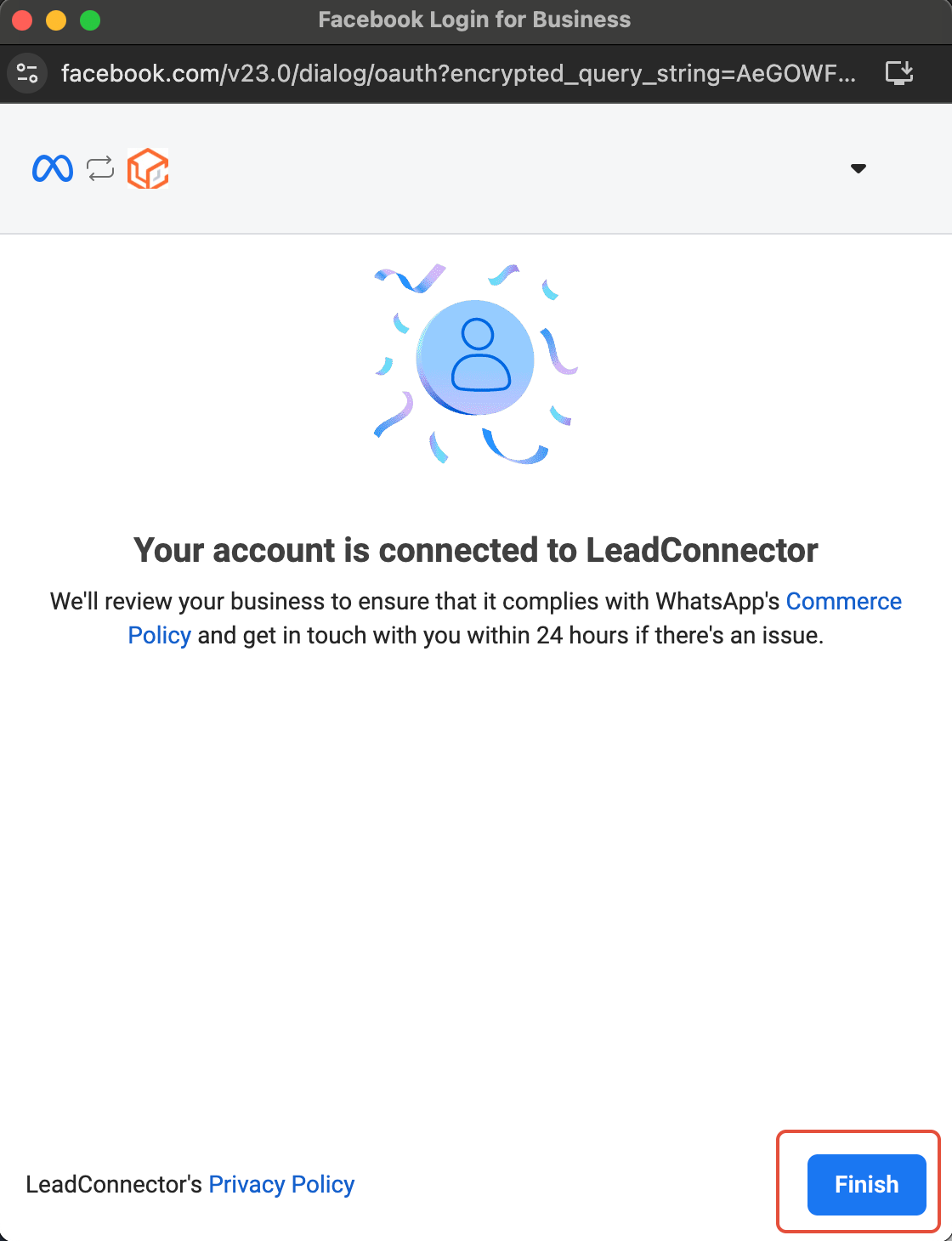
Integration abgeschlossen
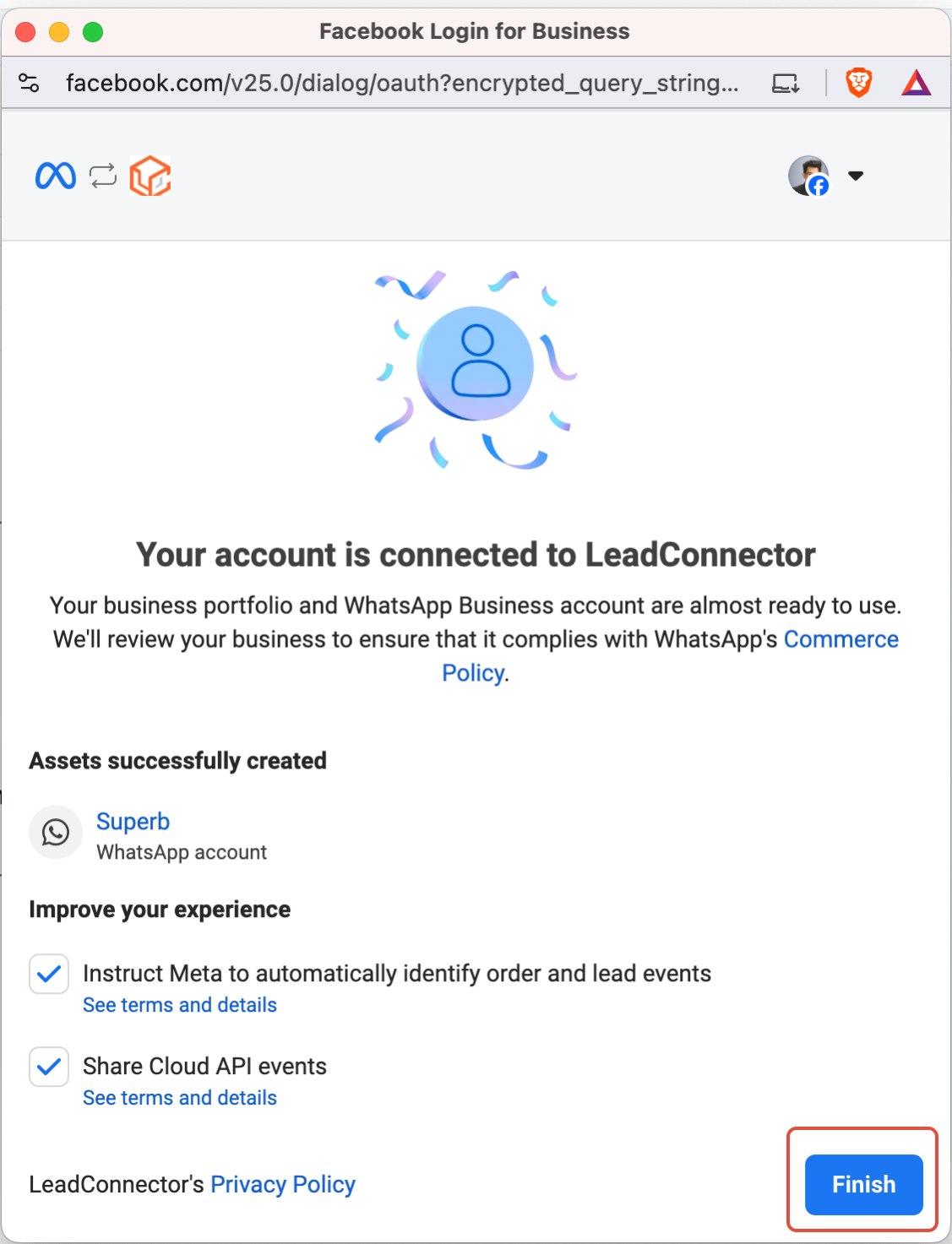
Klicke auf **Finish**. Deine WhatsApp Business App ist vollständig in UmsatzAgent integriert.
```
HINWEIS
1. Das Senden von Vorlagennachrichten wird über die WhatsApp Business App nicht unterstützt – sie können nur über das CRM gesendet werden.
2. Du verwaltest dein WhatsApp-Profil über die WhatsApp Business App, nicht über das CRM.
3. Unter Koexistenz kannst du maximal eine Telefonnummer nutzen.
```
Methode 2: Neue WhatsApp Business-Telefonnummer verbinden
1
Registrierungsprozess starten
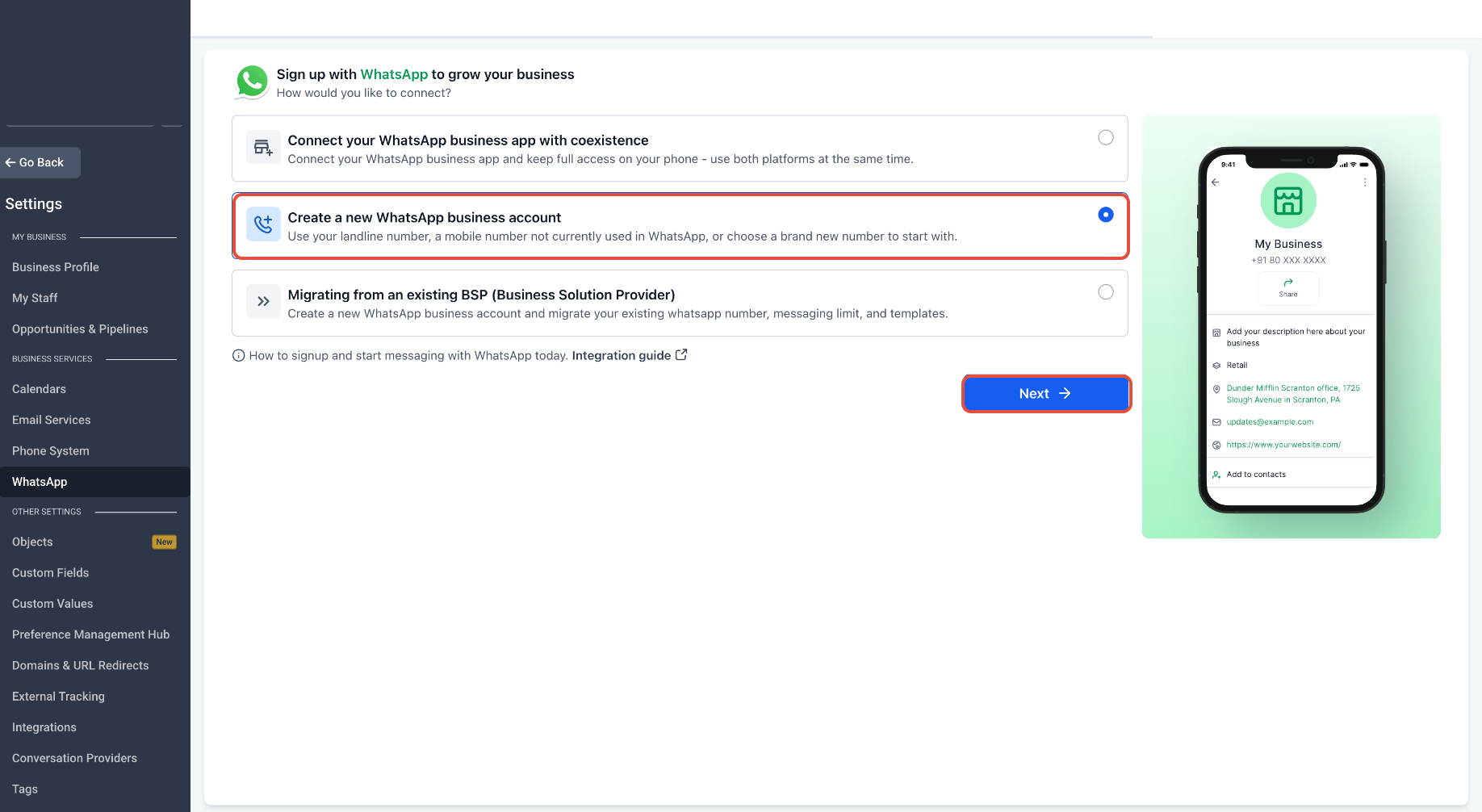
Navigiere zu **Einstellungen > WhatsApp** und klicke auf **Create a new WhatsApp business account**.
2
Mit Facebook fortfahren
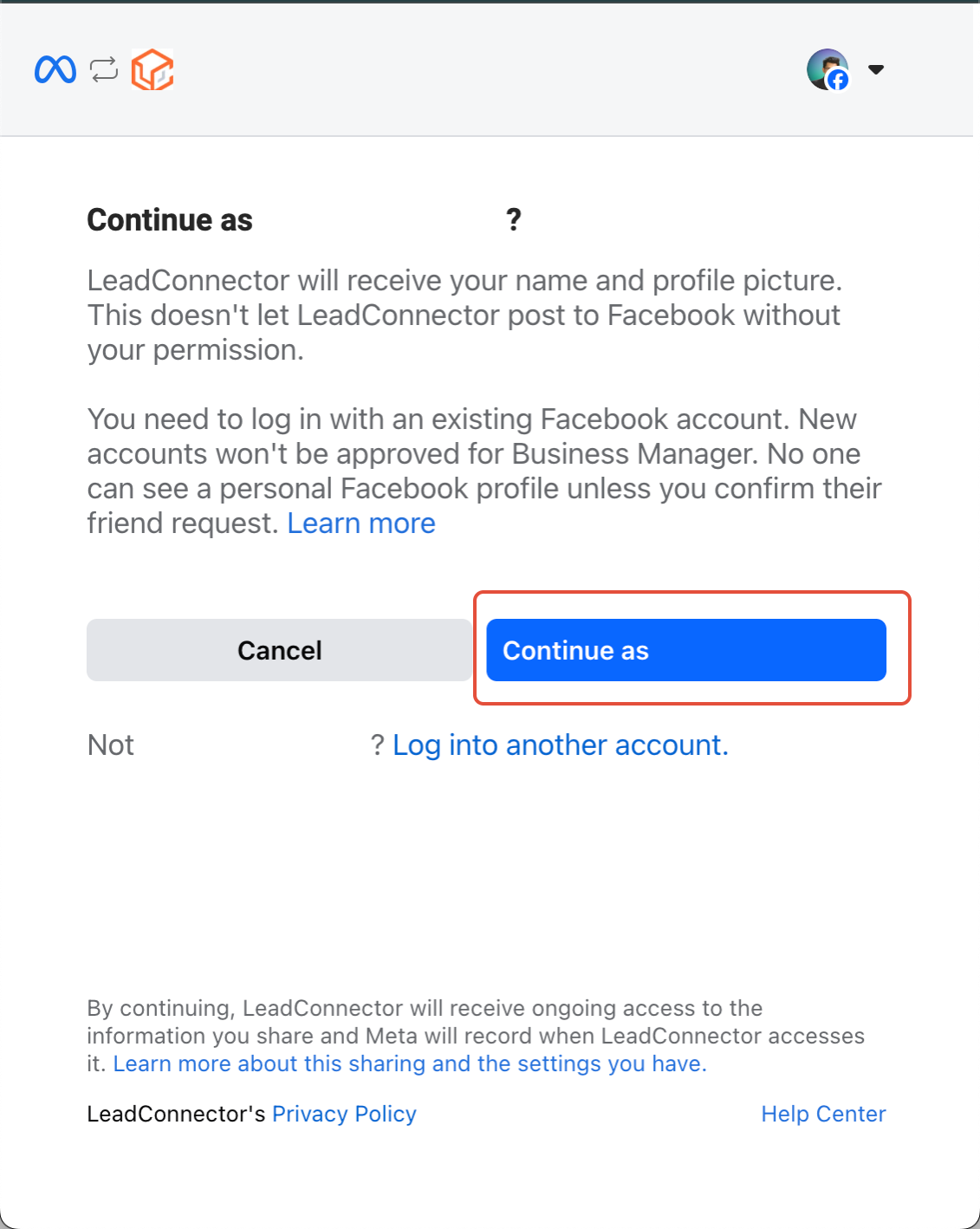
Klicke auf **Continue with Facebook** und melde dich mit dem Facebook-Konto deines Unternehmens an.
3
Einrichtung starten
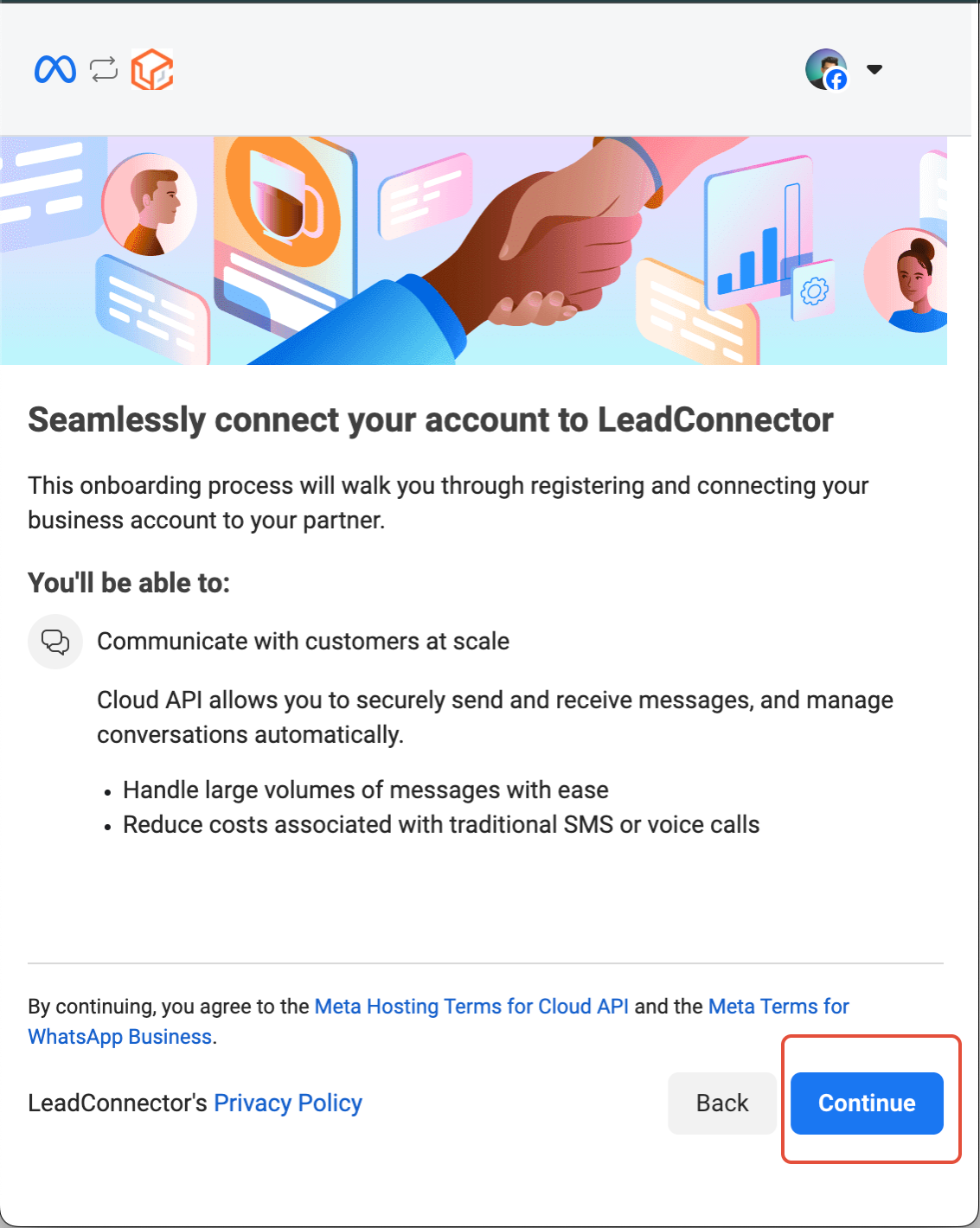
Tippe auf **Continue**, um den Integrationsprozess zu starten.
4
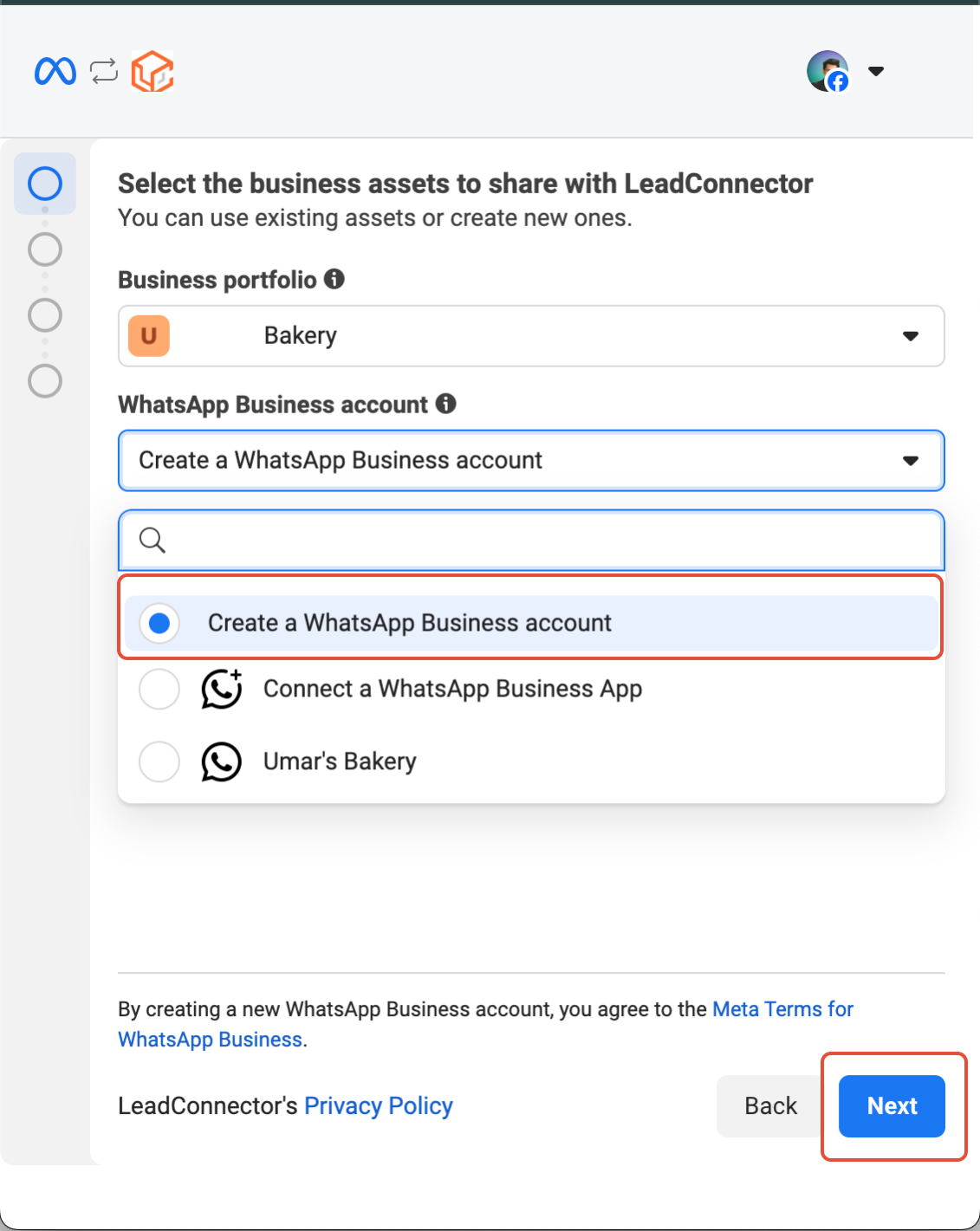
Unternehmensdaten eingeben
Fülle alle erforderlichen Unternehmensdaten aus, wähle **Create WhatsApp Business Account** und klicke dann auf **Next**.
5
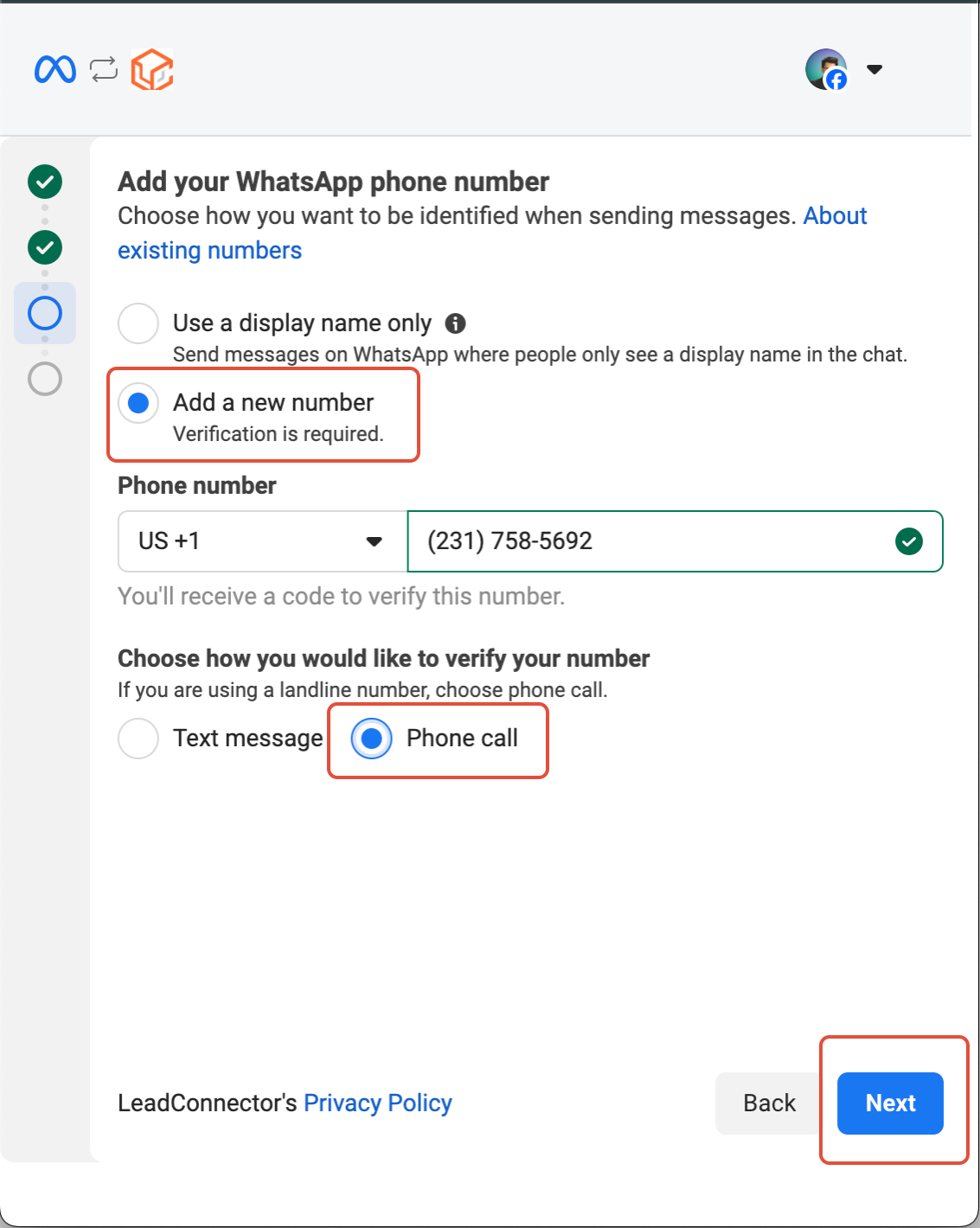
Telefonnummer hinzufügen
Gib die Telefonnummer ein, die du integrieren möchtest. Stelle sicher, dass sie aktiv und für die Verifizierung erreichbar ist.
6
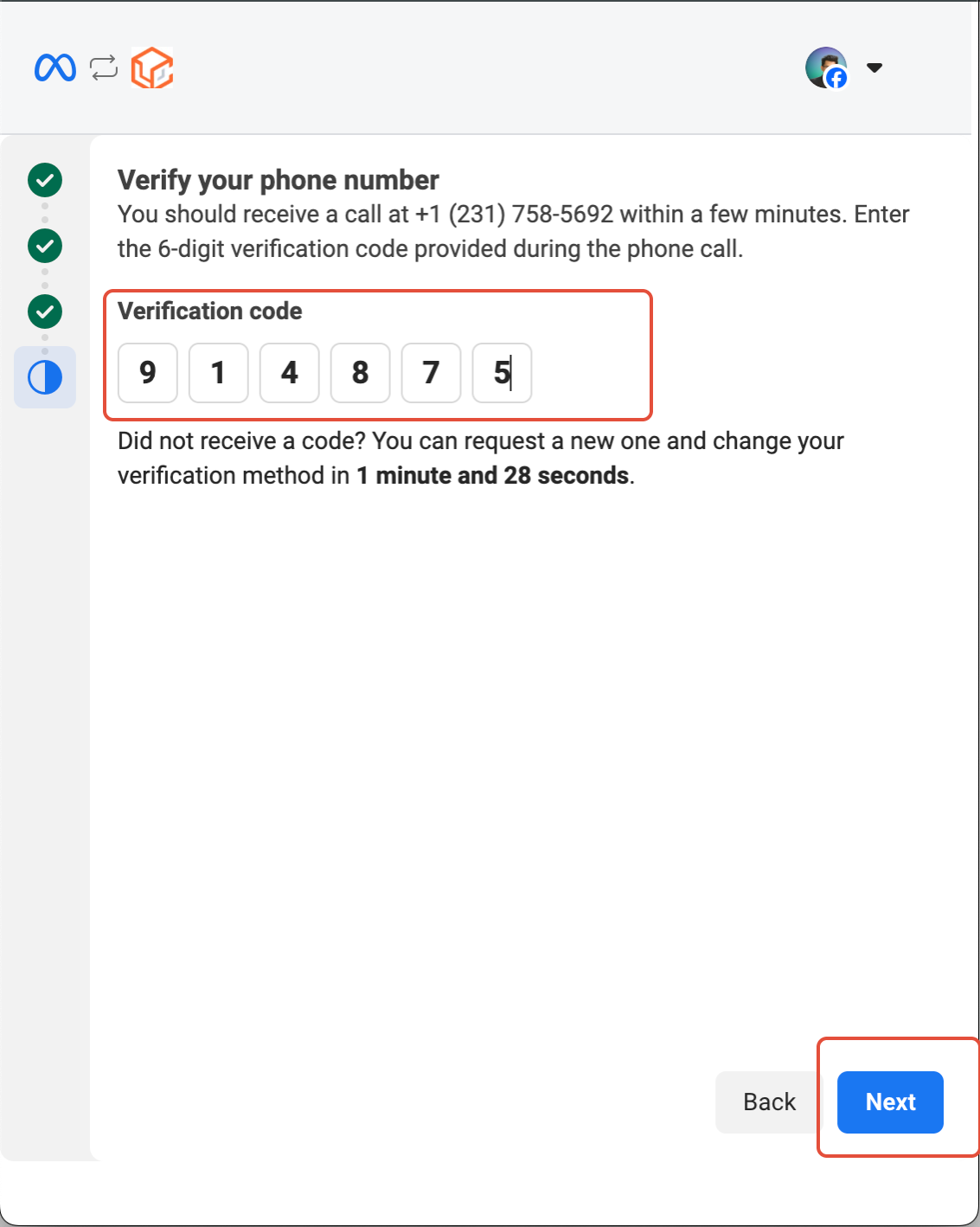
Per Einmalpasswort verifizieren
Gib das per SMS oder Sprachanruf empfangene Einmalpasswort (OTP) ein und klicke dann auf **Next**.
7
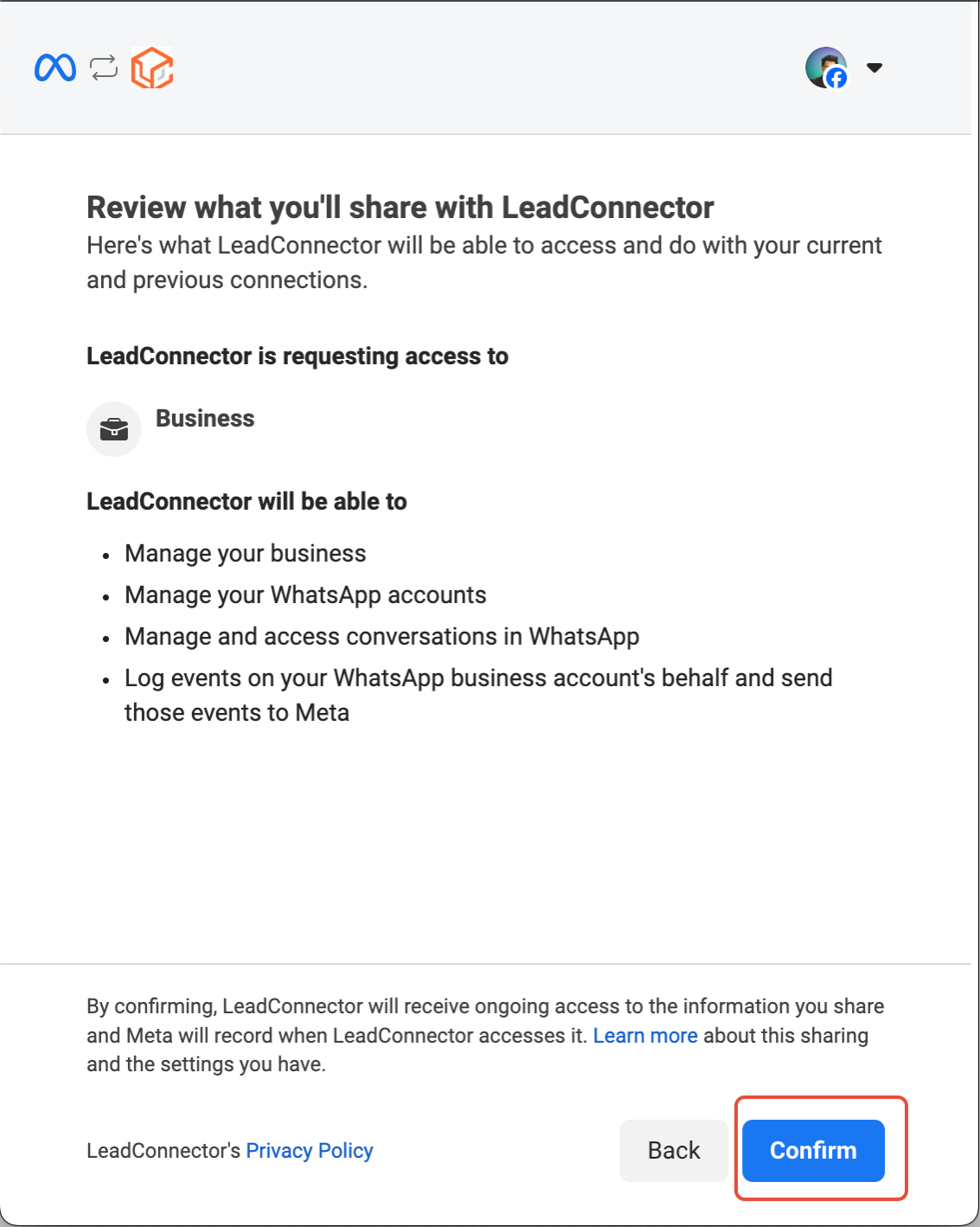
Überprüfen und bestätigen
Prüfe alle eingegebenen Details sorgfältig und klicke dann auf **Confirm**.
✓
Integration abgeschlossen
Dein WhatsApp Business-Konto ist jetzt erfolgreich integriert und einsatzbereit.
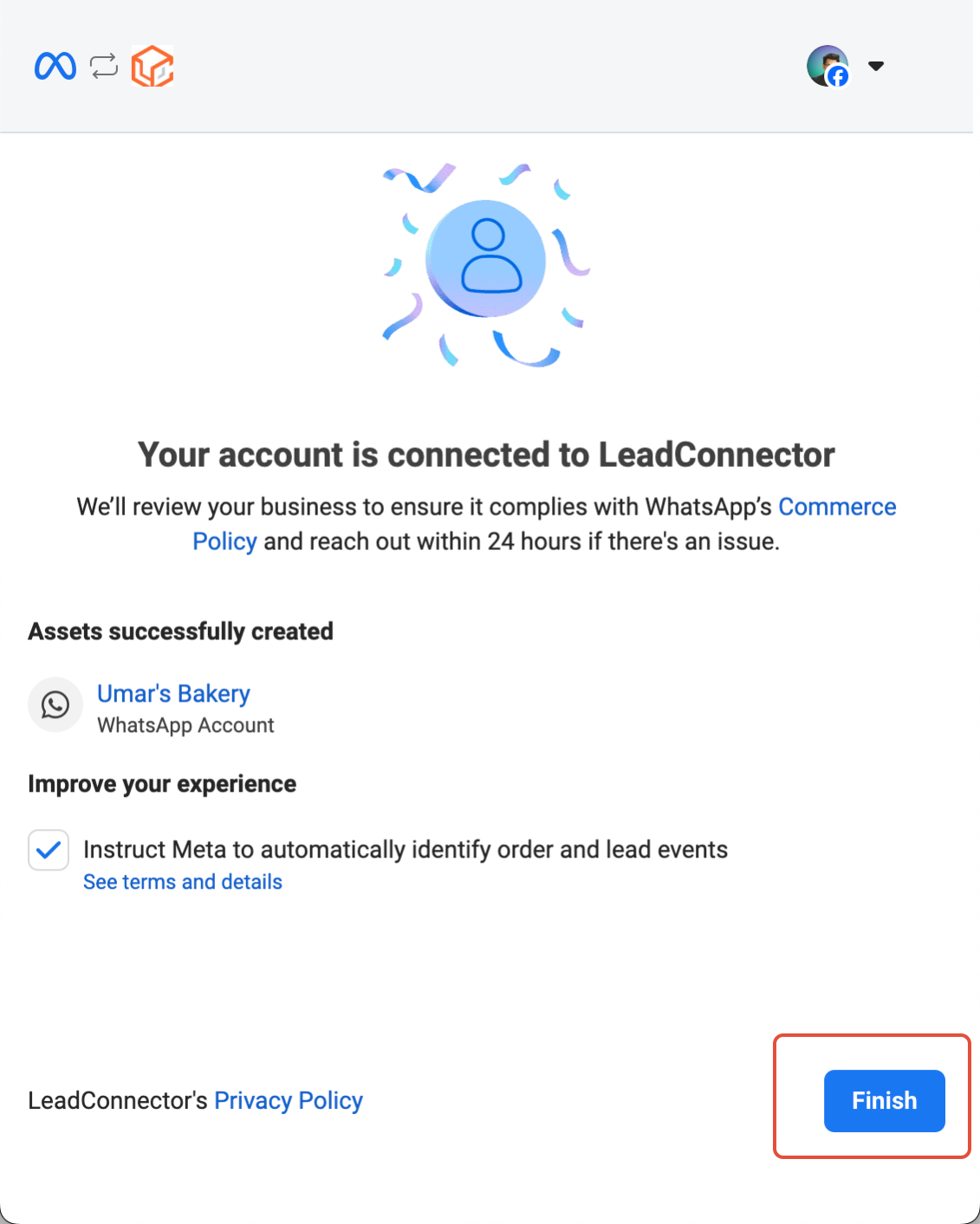
Methode 3: Von einem bestehenden BSP migrieren
1
Registrierungsprozess starten
Navigiere zu **Einstellungen > WhatsApp** und klicke auf **Migrating from an existing BSP (Business Solution Provider)**.
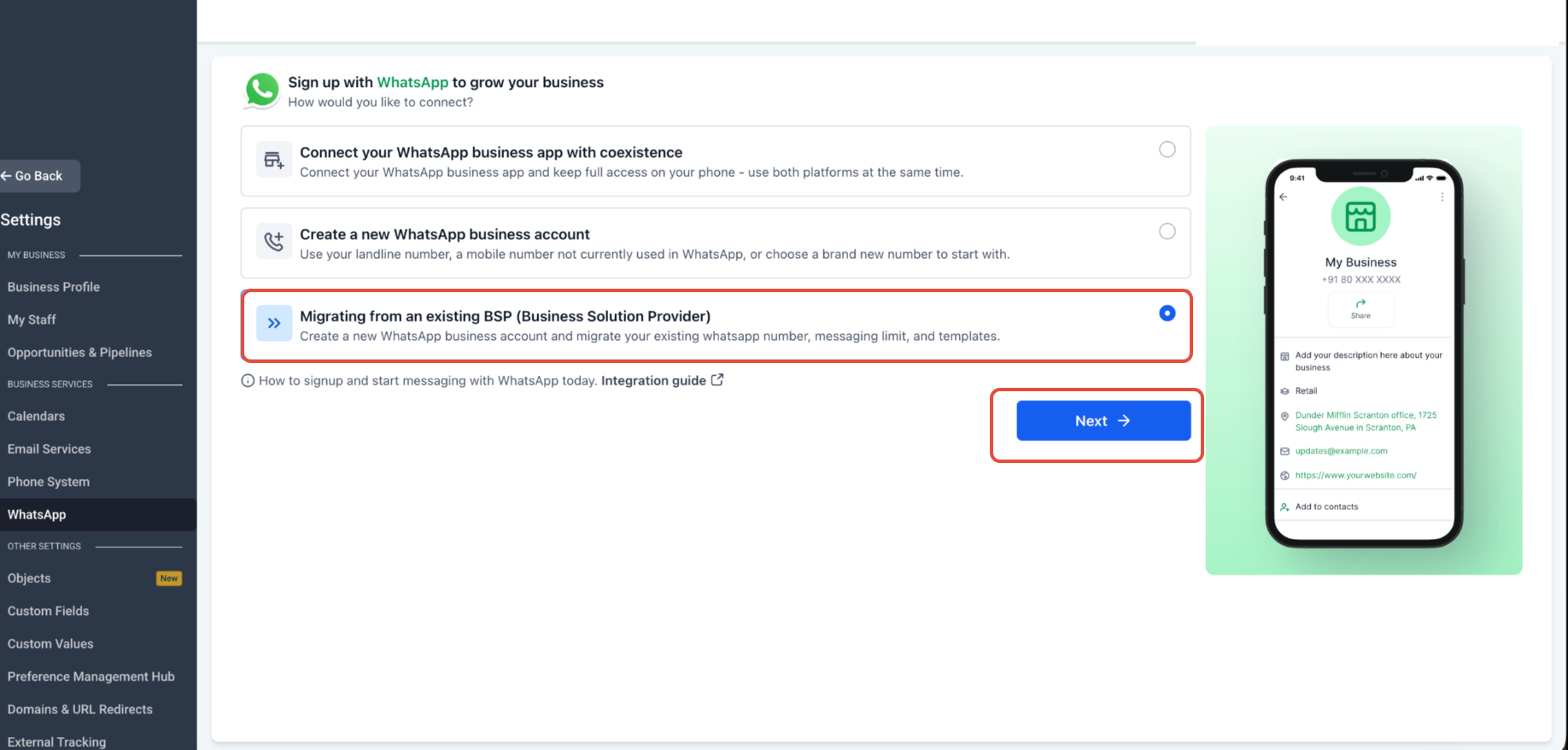
2
Einrichtung starten
Tippe auf **Continue**, um den Migrationsprozess zu starten.
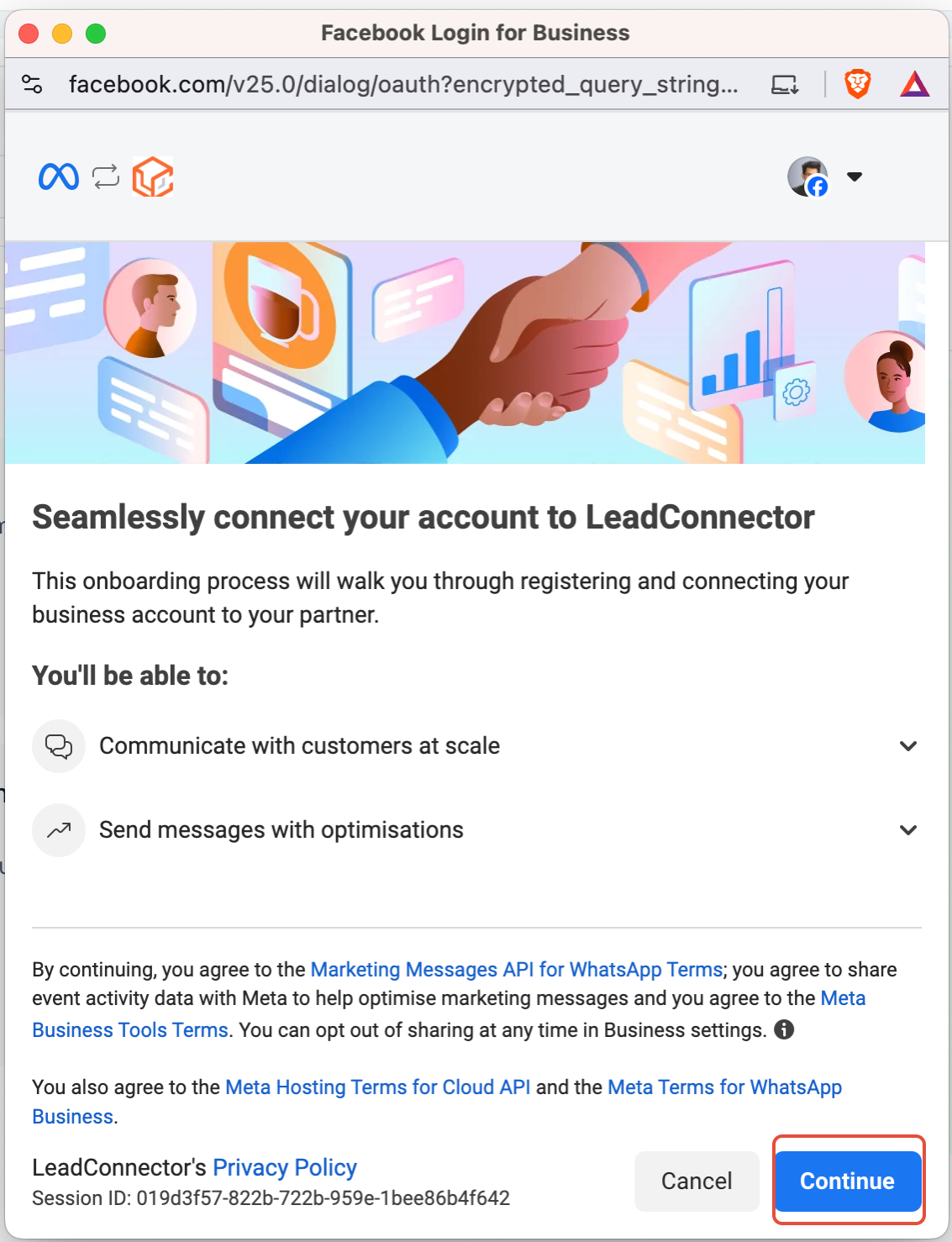
3
Business-Assets auswählen
Wähle die Unternehmens-Assets aus, die du migrieren möchtest. Stelle sicher, dass du das richtige WhatsApp Business-Konto und die zugehörigen Assets auswählst.
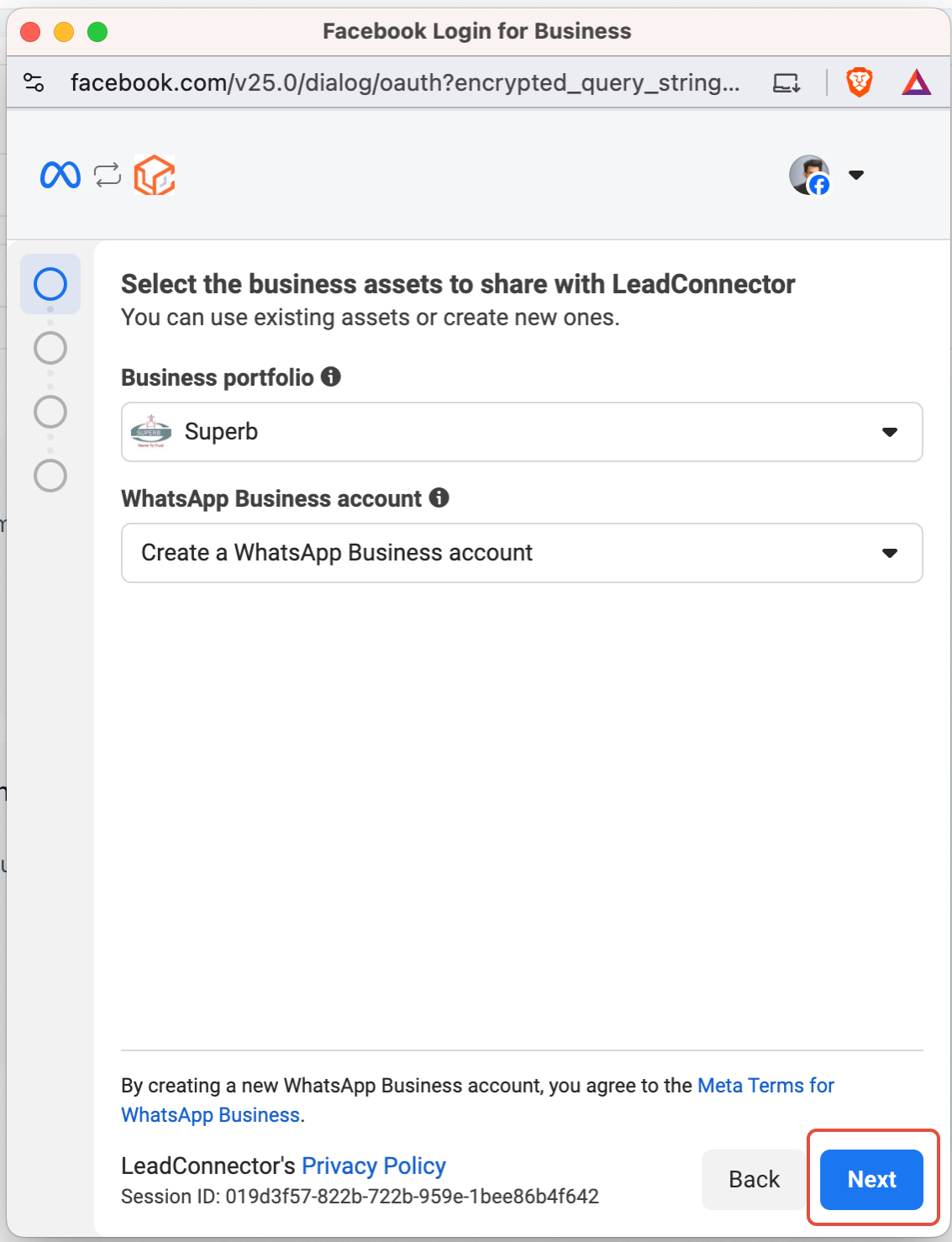
4
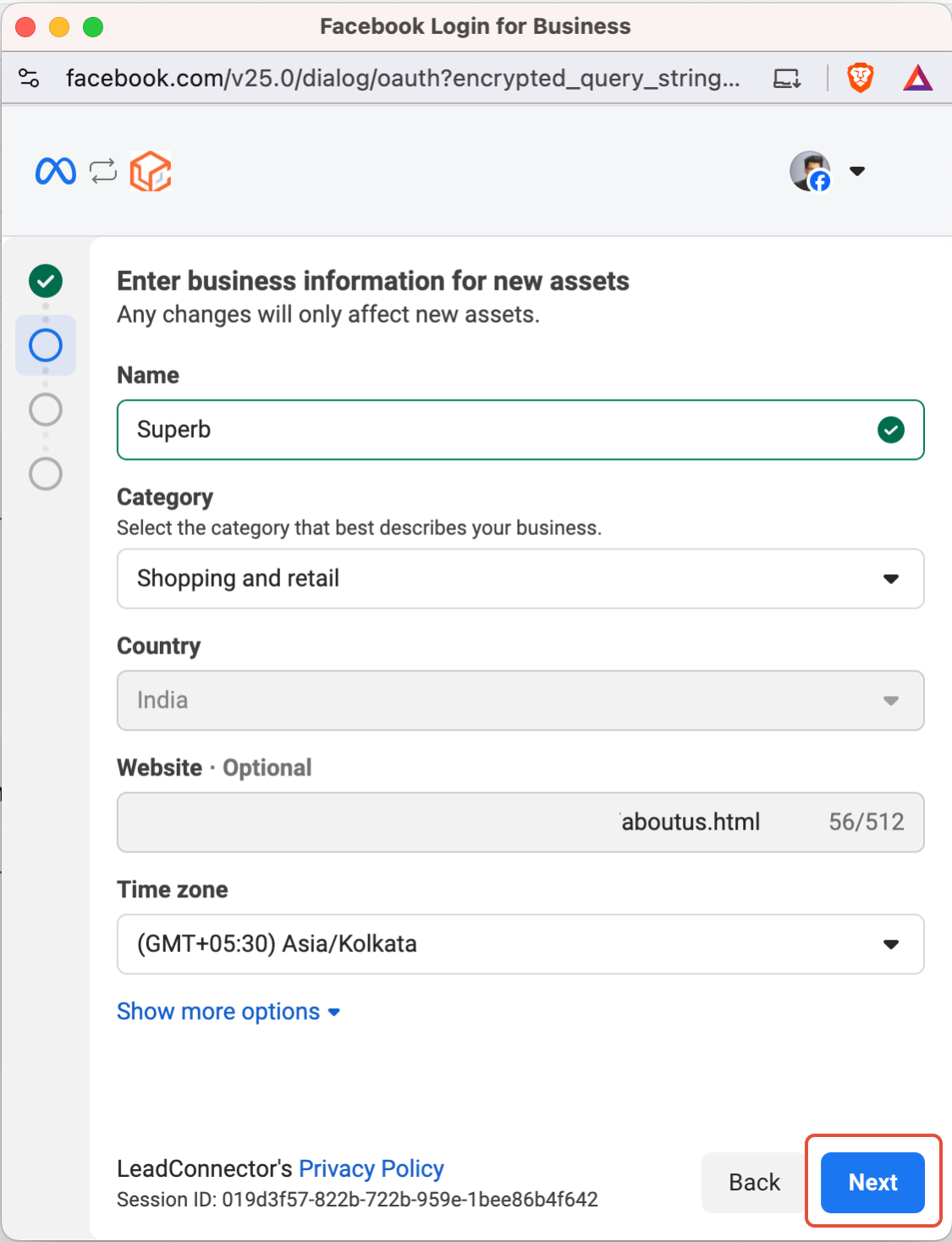
Unternehmensdaten eingeben
Gib alle erforderlichen Unternehmensdaten korrekt ein und klicke dann auf **Next**.
5
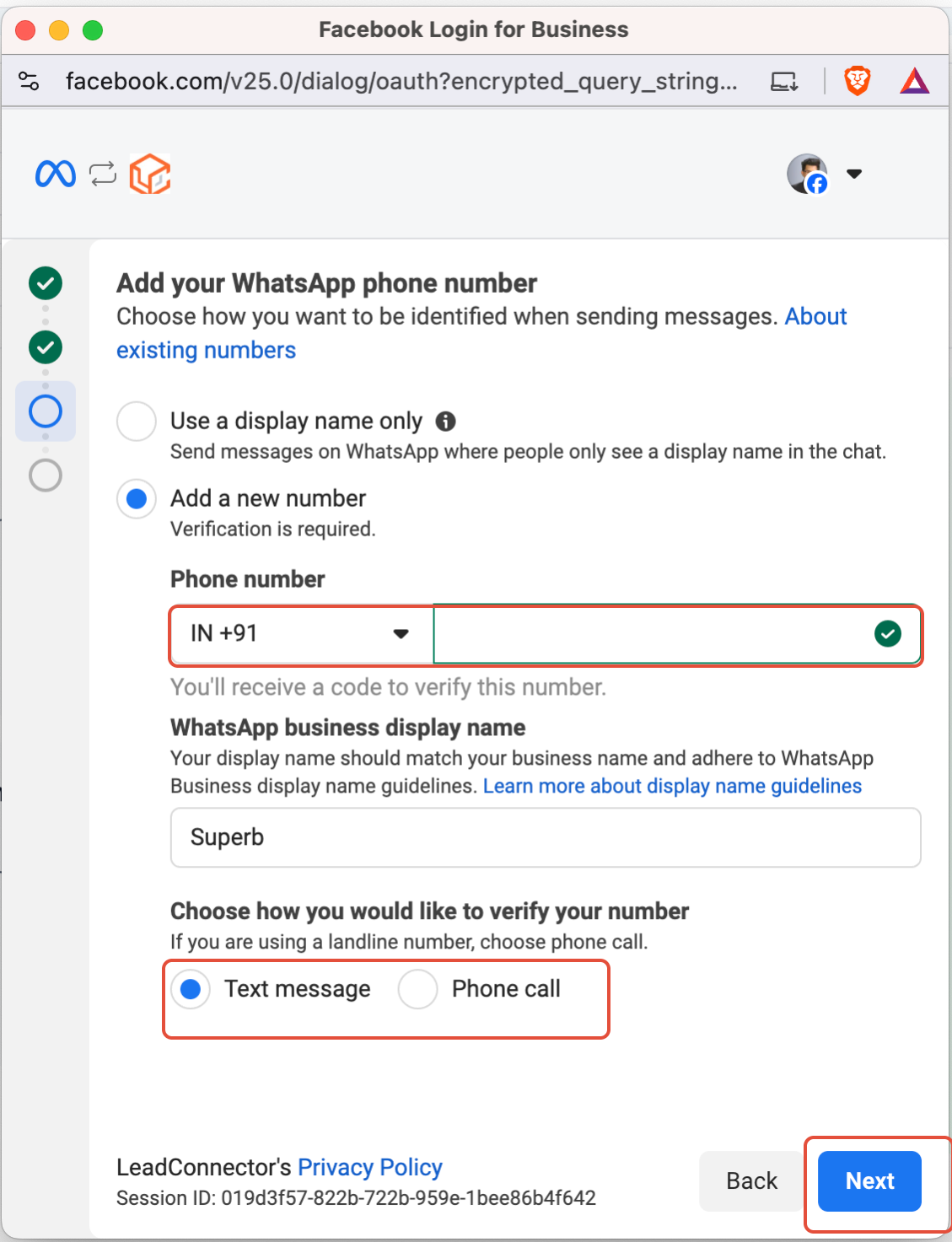
Telefonnummer hinzufügen
Gib die Telefonnummer ein, die du migrieren möchtest. Stelle sicher, dass sie aktiv und für die Verifizierung erreichbar ist, und klicke dann auf **Next**.
6
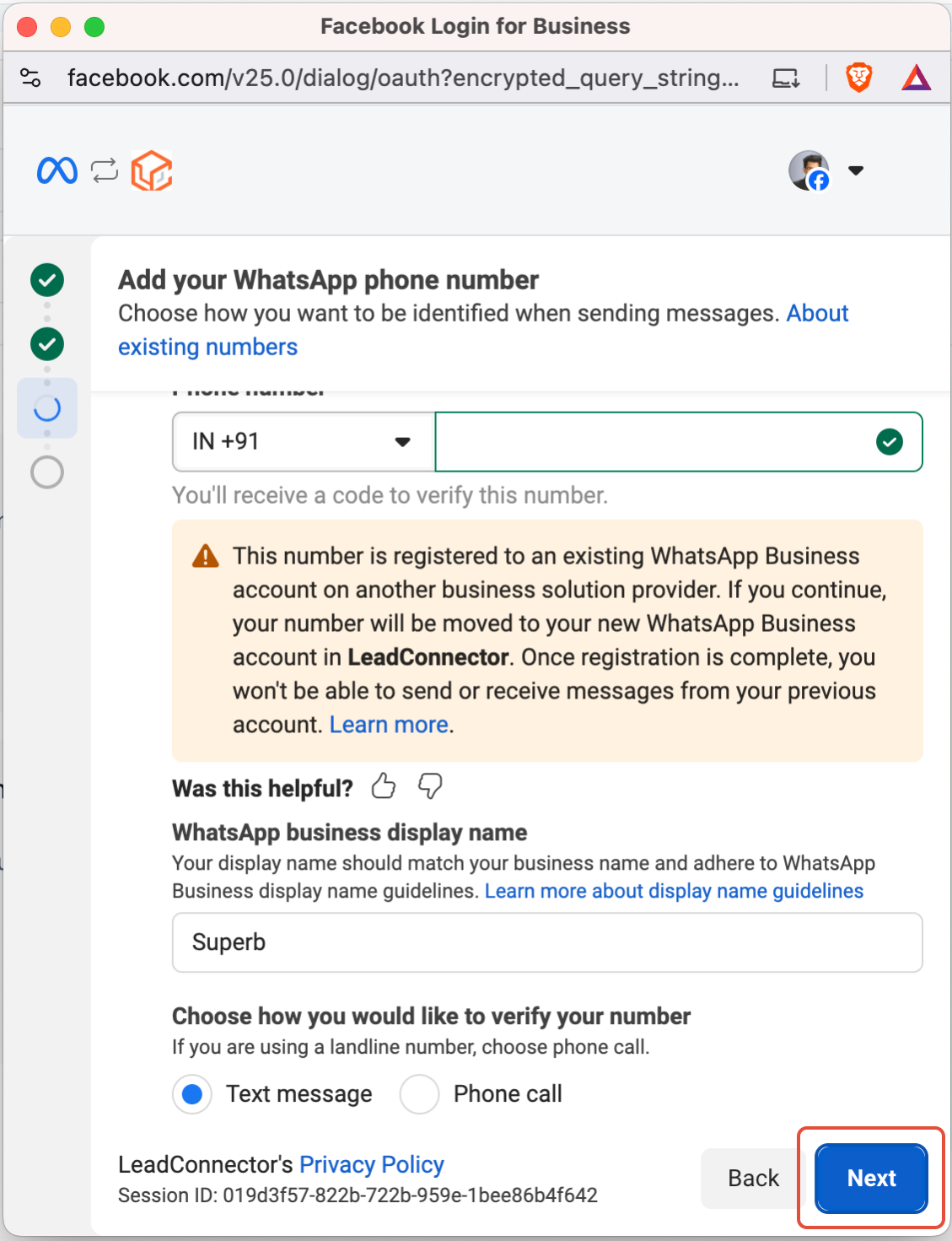
Telefonnummer verifizieren
Klicke auf **Next**, um deinen Bestätigungscode zu erhalten und mit der Nummernverifizierung fortzufahren.
7
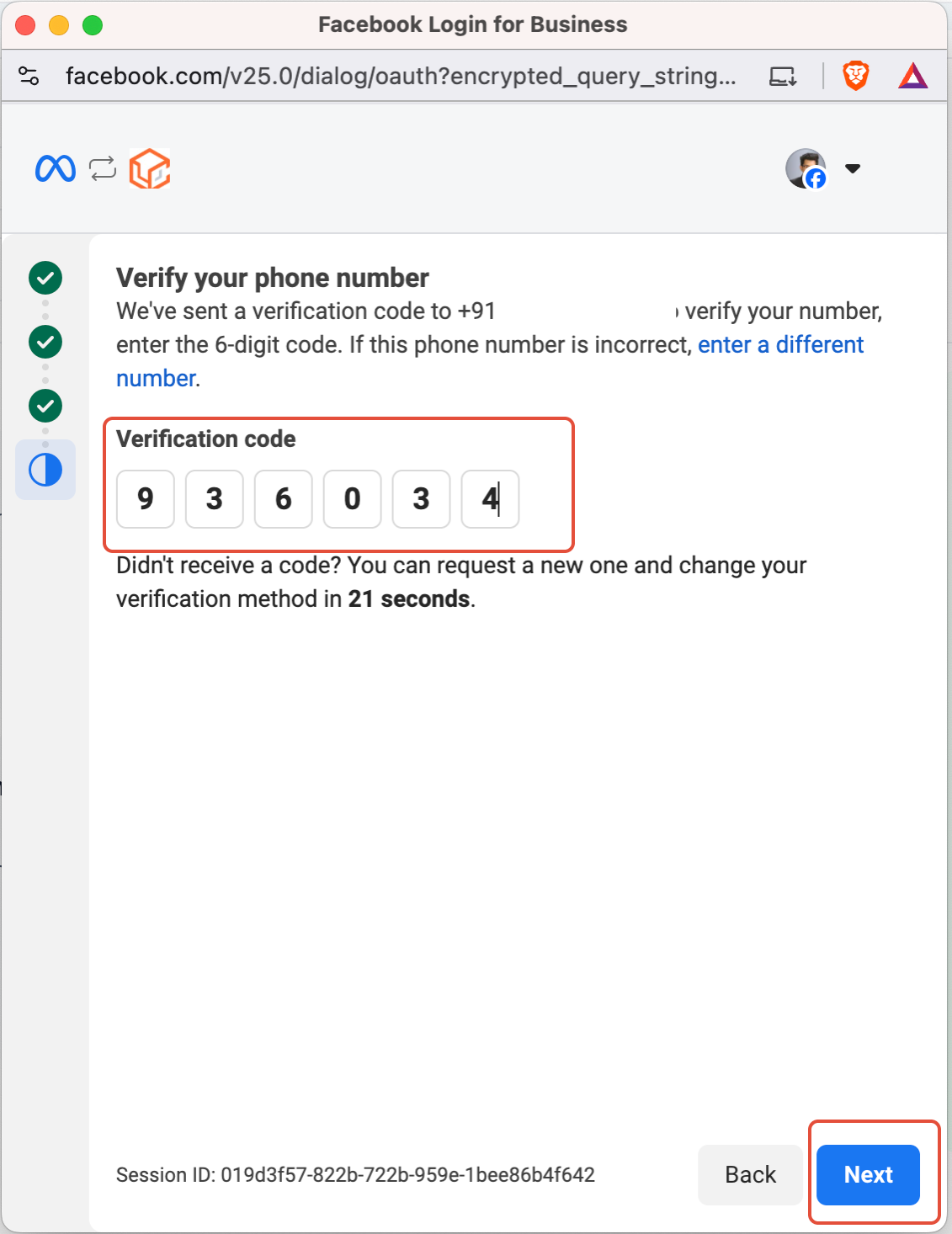
Einmalpasswort eingeben
Gib das per SMS oder Sprachanruf empfangene Einmalpasswort (OTP) ein und klicke dann auf **Next**.
8
Überprüfen und bestätigen
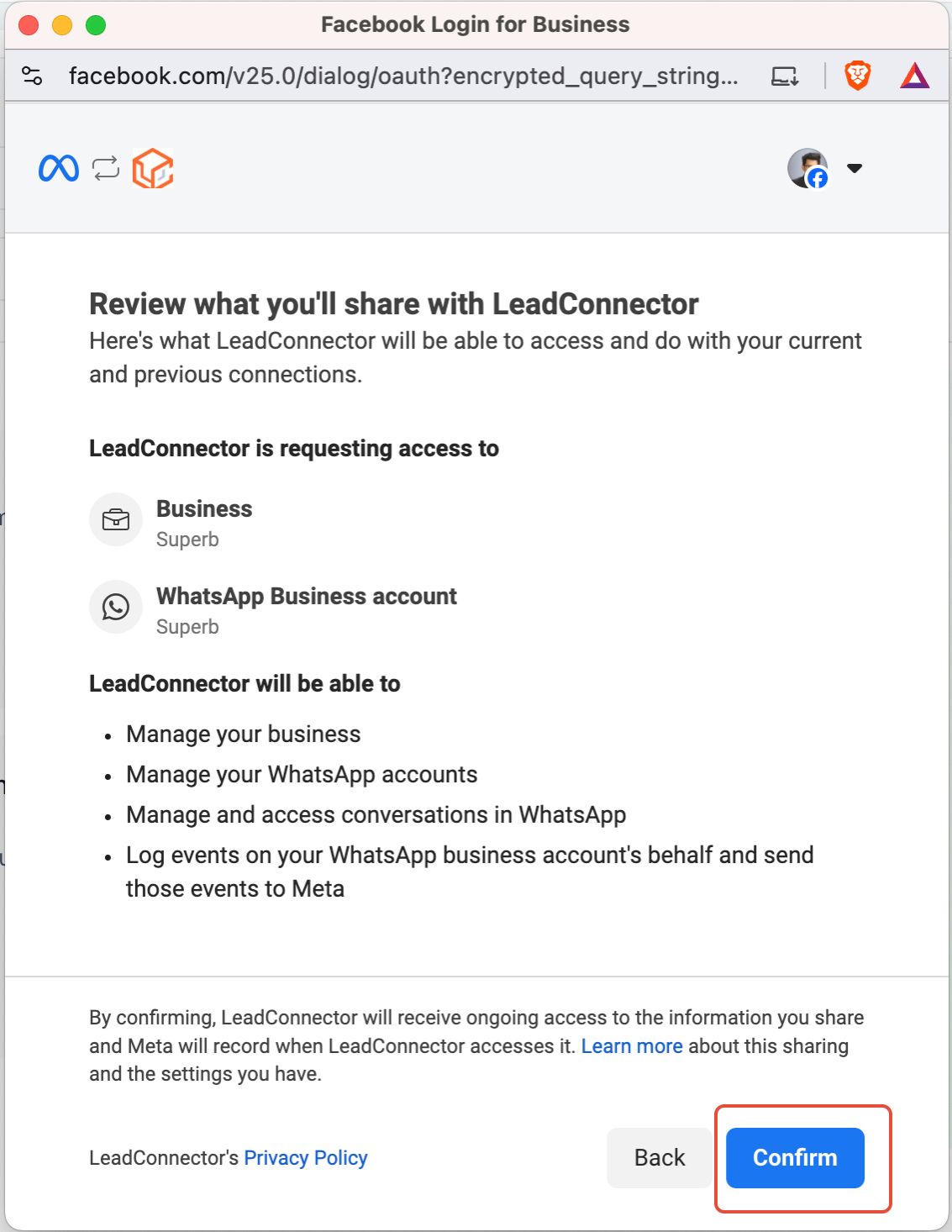
Prüfe alle eingegebenen Details sorgfältig und klicke dann auf **Confirm**, um die Migration abzuschließen.
✓
Migration abgeschlossen
Dein WhatsApp-Konto wurde erfolgreich migriert und ist einsatzbereit.
This documentation is built and hosted on [Mintlify](https://mintlify.com), a developer documentation platform.